Land Forming
Chapter of the Ditch Assist app manual. The same text is in the app under Manual.
In the app Manual › Land Forming
What this mode is for
Land Forming is for grading a 3D field surface from a design file produced by drainage / land-leveling software (Geo-Surface™, EZ-Grade, AGD design tools, Civil 3D, Trimble, Bentley, and similar). You don't survey — you import. The whole field becomes the design surface, and the blade is automatic anywhere inside the design boundary.
Use Land Forming when:
- A drainage engineer or your design software handed you an XYZP, AGD, or LandXML file.
- You need to grade an entire field, not a single ditch or slope.
- You want section-by-section grading with imported benchmarks.
Workflow at a glance:
- Connect to the controller.
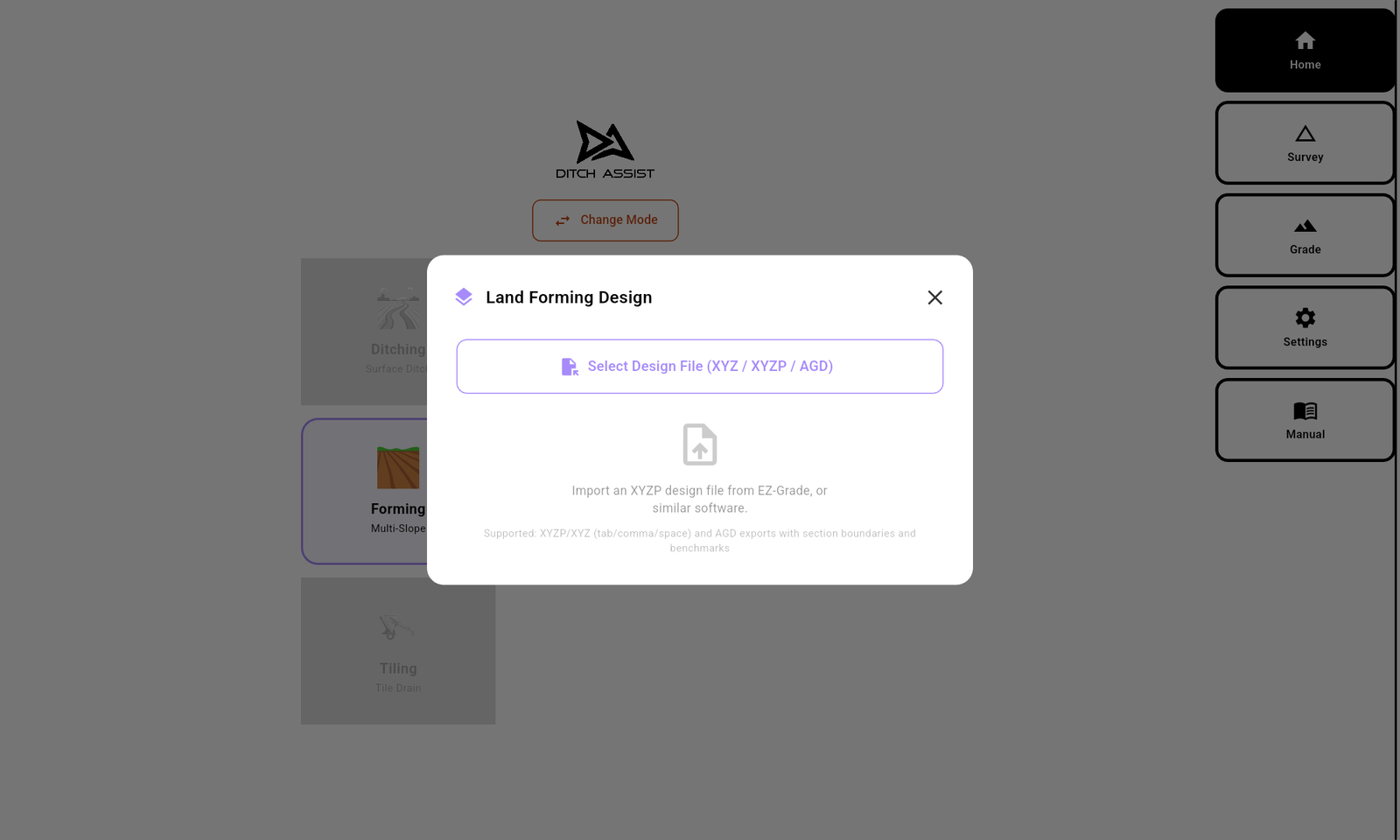
- From the Forming wizard, tap Import XYZP File, Import AGD File, or Import LandXML.
- Pick your
.xyz,.xyzp,.agd, or LandXML file in the dialog that opens. Wait for the surface to triangulate. - The Grade screen opens with the cut/fill overlay on the map.
- Drive to a benchmark (or any stable point), set the BM.
- Tap Start and grade. The blade target updates as you drive.
There is no survey step in this mode. The design IS the survey + the proposed surface.
In this chapter
Did this answer your question?
Thanks. That tells us which pages to improve.
Still stuck? Talk to a product specialist. 1-833-DITCH-AS · support@ditchassist.com · Monday to Friday, 8 a.m.–5 p.m. Central.
Calling about a problem? Send your app logs first so support can see what happened.