Surveying the ditch
Ditching chapter of the Ditch Assist app manual. The same text is in the app under Manual.
In the app Manual › Ditching › Surveying the ditch
A clean survey makes Slope-IQ's design much better. You are recording the existing ground elevation along the planned ditch centerline, point by point.
To record a survey:
- From the Ditching wizard, tap New Survey.
- Drive to the start of the planned ditch.
- Tap Start in the sidebar. The Survey screen begins recording.
- Drive the route at a steady pace. The app records a point every time you move the configured Survey Interval (default 10 ft / ~3 m).
- Watch the stats bar at the top: Distance ticks up, Points counts up, Drop shows the total elevation change from start.
- When you reach the far end, tap Stop. A save dialog appears.
- Type a name (e.g. "South 40 main ditch"), tap Save.


What makes a good ditch survey:
- Drive the actual centerline. The app uses your GPS path as the design path.
- Drive at a steady speed — too fast skips ground detail, too slow records duplicate points.
- Stay on RTK Fixed. The stats bar's GPS Accuracy badge should stay green. If it drops, slow down or wait for it to recover.
- Cover the full route. Slope-IQ cannot design beyond the points you gave it.
Survey Interval (Settings → SURVEY)
Smaller interval = denser points = more terrain detail but bigger files. Default 10 ft (3 m) is fine for most agricultural ditches. Drop it to 1.6–3 ft (0.5–1 m) for short, detailed runs. Raise it to 16 ft (5 m) for very long ditches.
RTK Filter (Settings → SURVEY)
When on, the app only records points while RTK is fixed. Float and lower fixes are dropped. This is the safe default. Turn it off only if you absolutely must log in poor GPS conditions.
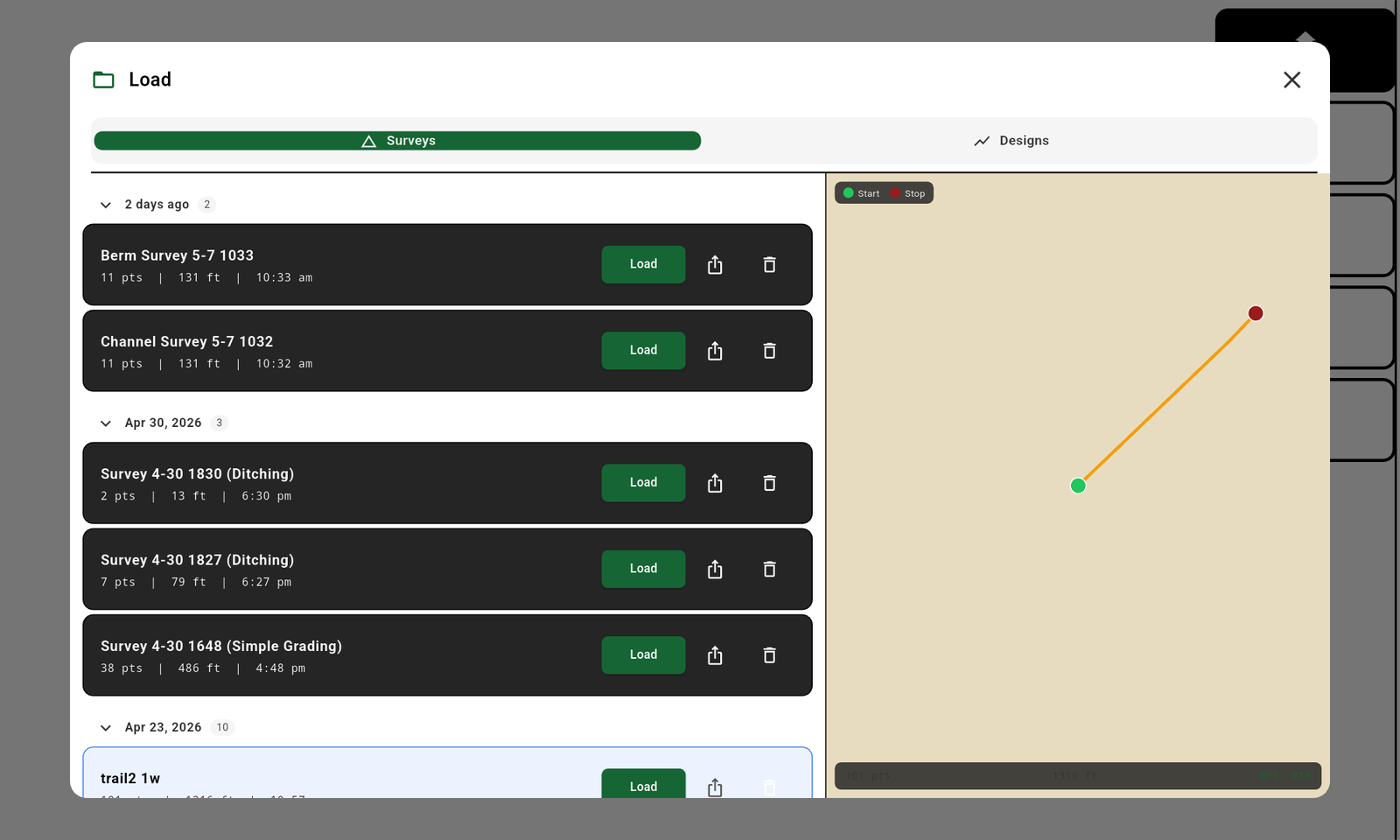
Loading a saved survey instead
If you already surveyed this ditch on a previous trip, tap Load Survey in the Ditching wizard. Pick from the dated list. The terrain points load and Slope-IQ opens. Because the GPS frame may have shifted (base station moved or rebooted), the app will prompt for benchmark calibration after you implement the design.
Loading a saved design
If you already have a finished Slope-IQ design from before, tap Load Design instead. This skips the survey and the design steps and goes straight to Grade. You will be prompted to set the benchmark.
Importing a survey or design from a file (Ditching, Excavation, Tiling). Both tabs of the Load picker have a small Import … file link at the top right, for lines exported by design software such as Geo-Surface Pro (tab/comma separated, elevations in metres, points in run order):
- Surveys tab — "Import survey file (XYZ / XYZP)": the first three columns (
lat lon elevation) become a survey you did not drive — Geo-Surface's Ditch Assist XYZ Raw export. The workflow's designer then opens on it exactly as after Load Survey, and you design in Slope-IQ (or the tile designer) as usual. - Designs tab — "Import design file (XYZP)": a 4-column file (
lat lon existing proposed) — Geo-Surface's Ditch Assist XYZP Design export — becomes survey + best-fit design in one go, and the designer opens pre-loaded in Freeform so you can preview or tweak the line before you implement it. A 3-column file picked here is imported as a survey (there is no design in it).
Use both with caution: you are trusting another system's line and elevations instead of driving the ground. Imported elevations come from that system's frame, so the Calibrate GPS? prompt fires when you implement — calibrate to a benchmark or a known point before grading (Geo-Surface's guidance: use auto height calibration to calibrate GPS to LiDAR).
Did this answer your question?
Thanks. That tells us which pages to improve.
Still stuck? Talk to a product specialist. 1-833-DITCH-AS · support@ditchassist.com · Monday to Friday, 8 a.m.–5 p.m. Central.
Calling about a problem? Send your app logs first so support can see what happened.