Quick start
Ditching chapter of the Ditch Assist app manual. The same text is in the app under Manual.
In the app Manual › Ditching › Quick start
Five steps from app launch to a moving blade:
- On the Home screen, tap the Ditching card. The Ditching wizard opens with three options: New Survey, Load Survey, Load Design.
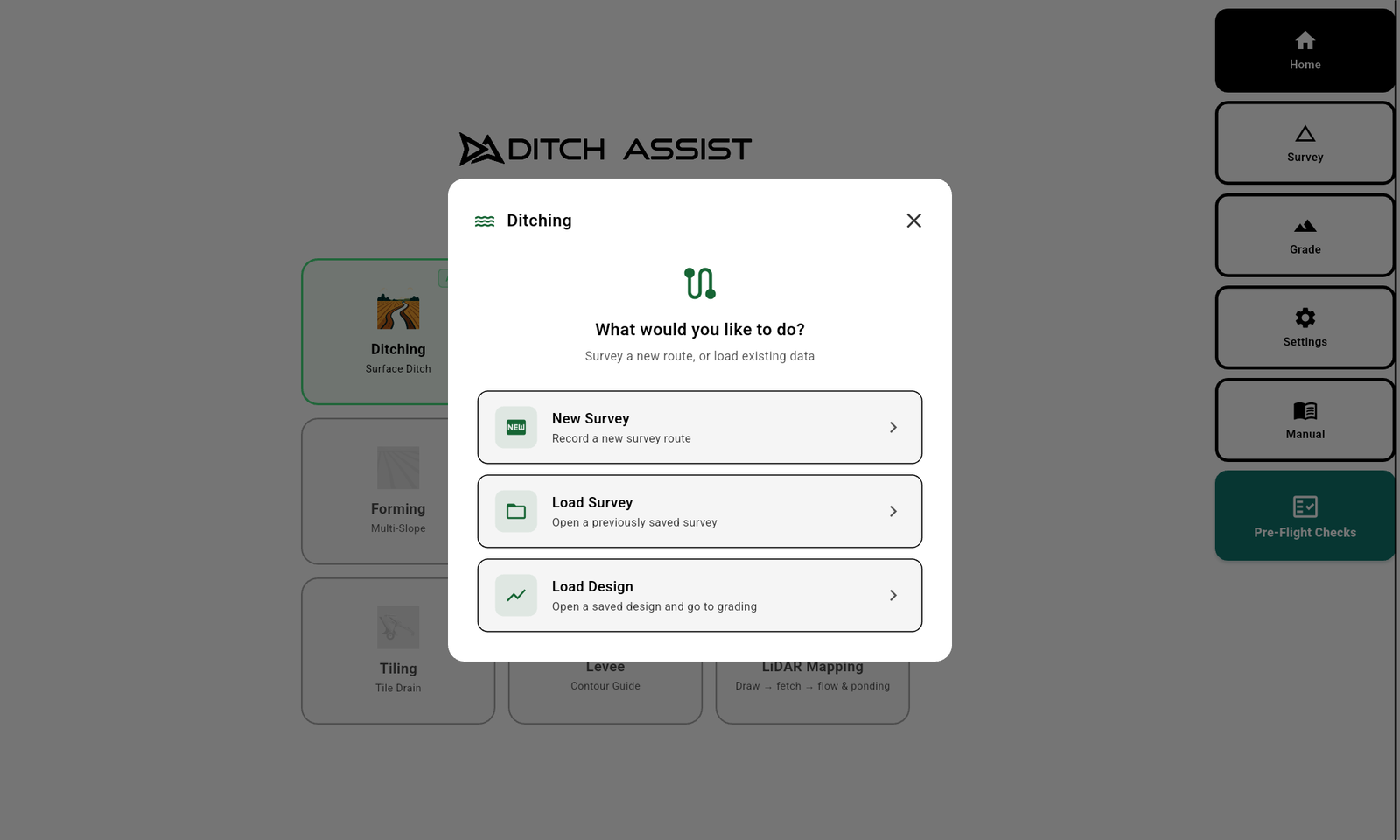
If this is a new ditch, tap New Survey. The Survey screen opens. Drive to the start of the ditch line, tap Start in the sidebar, then drive to the far end. Tap Stop, name the survey, and Save.
The Slope-IQ design dialog opens automatically. The default mode is Best-Fit, which usually gives a good design with no tweaking. Review the green target line on the chart. Adjust Depth Offset or Min Grade if you want a deeper or shallower ditch. Tap Implement Slope at the bottom.
If the app prompts for benchmark calibration, follow it (see Calibration & benchmarks in this section). If it prompts about Auto-Nudge for multi-pass grading, accept or skip based on how deep your cut is.


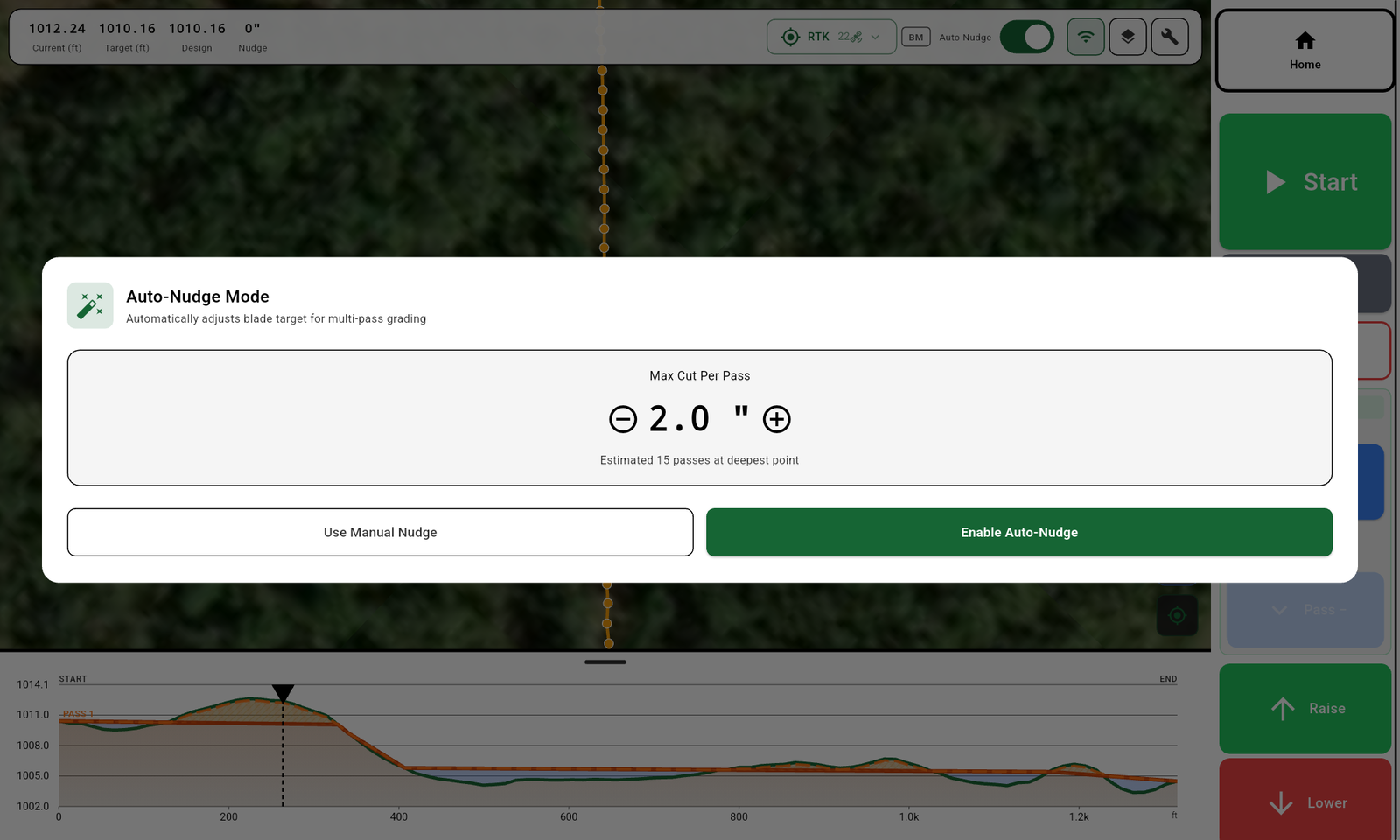
- The Grade screen opens with the map, stats bar, and profile chart visible. The Start button is in the sidebar on the left or right depending on handedness. Drive to your starting point, lower the blade onto the ground, and tap Start — the blade is now under automatic control. Watch the chevrons in the center of the screen — they tell you whether the blade is above or below grade. The job auto-saves whenever you Stop, switch tabs, or background the app.

Once grading is active, the sidebar takes over for the rest of the run — Stop, Hold/Release, Nudge Up/Down, and Resume all live there. When you finish a pass or the day, tap Stop in the sidebar. The hydraulics halt immediately.

Profile chart — resize to see more detail
The bottom strip of the grading screen is the elevation profile chart. Drag the divider up to expand it for fine-grain reading of cut depth, current pass progress, and the previous pass dashed lines. In Bluetooth GNSS mode the live position cursor is hidden — the chart still updates from the Bluetooth feed but the on-chart marker is suppressed.
Note on the graded line. The graded-terrain line on the profile chart is pulled toward the design line within about an inch of target — this is a chart-only visual aid that makes "on grade" easier to read at a glance. The real GPS-measured graded surface is unchanged; only the display is smoothed.

Did this answer your question?
Thanks. That tells us which pages to improve.
Still stuck? Talk to a product specialist. 1-833-DITCH-AS · support@ditchassist.com · Monday to Friday, 8 a.m.–5 p.m. Central.
Calling about a problem? Send your app logs first so support can see what happened.