Quick start
Leveling chapter of the Ditch Assist app manual. The same text is in the app under Manual.
In the app Manual › Leveling › Quick start
- Tap the Leveling card on the Home screen and connect in the wizard.
- The Grade screen opens directly in Leveling mode with an input bar across the bottom of the map. The left field is labeled Target Elevation (ft) — (m) in metric.
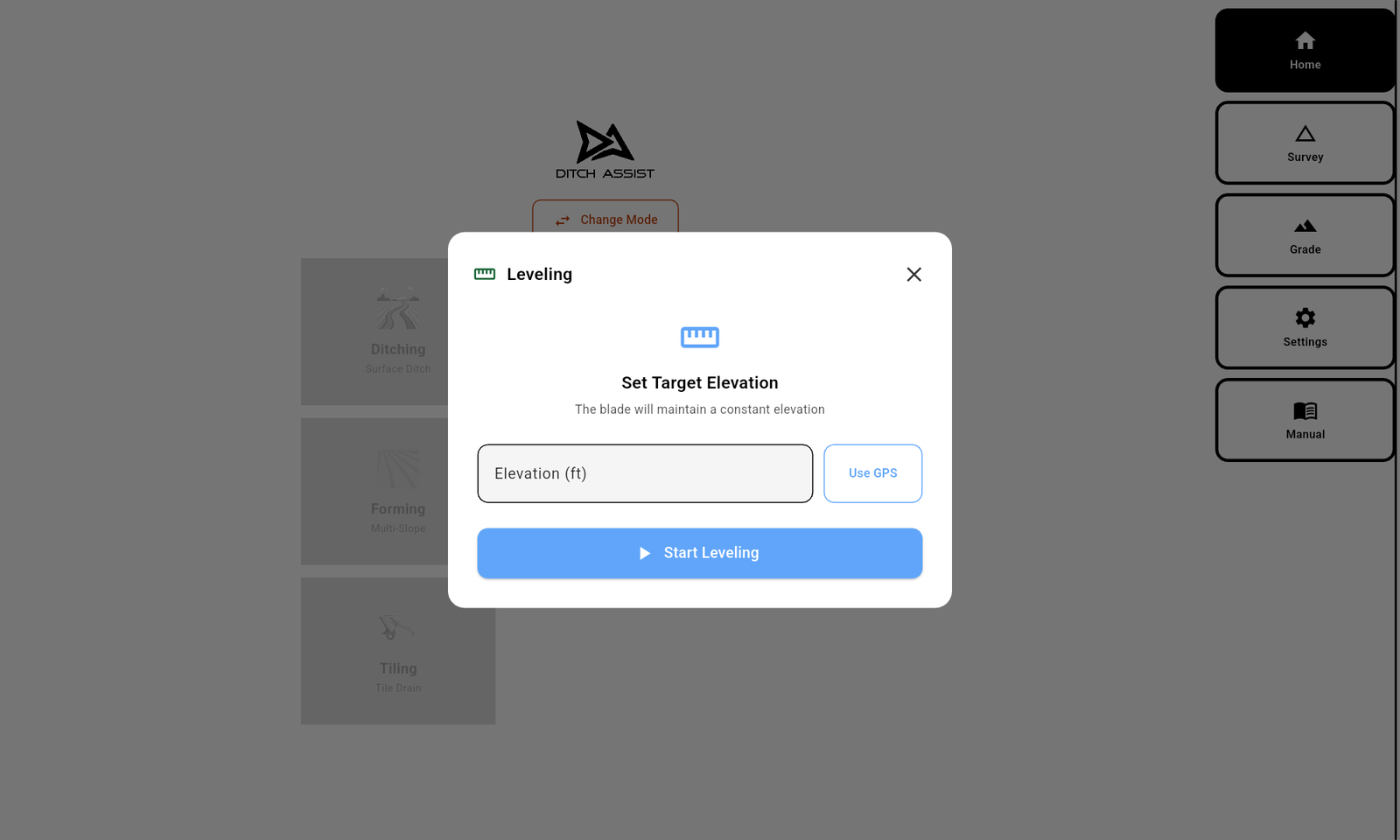
- Set the target one of three ways:
- Type the number (e.g. "1247.5") and tap the green Set Target, OR
- Tap the blue Use Current — it captures the current GPS elevation with the benchmark offset applied (blade height is never subtracted) and sets the target immediately. It is disabled without a GPS fix and refuses a stale/frozen feed, OR
- Type a depth into Depth Below Bucket (ft) and tap the orange Dig This Deep — the target becomes the anchor elevation minus that depth.
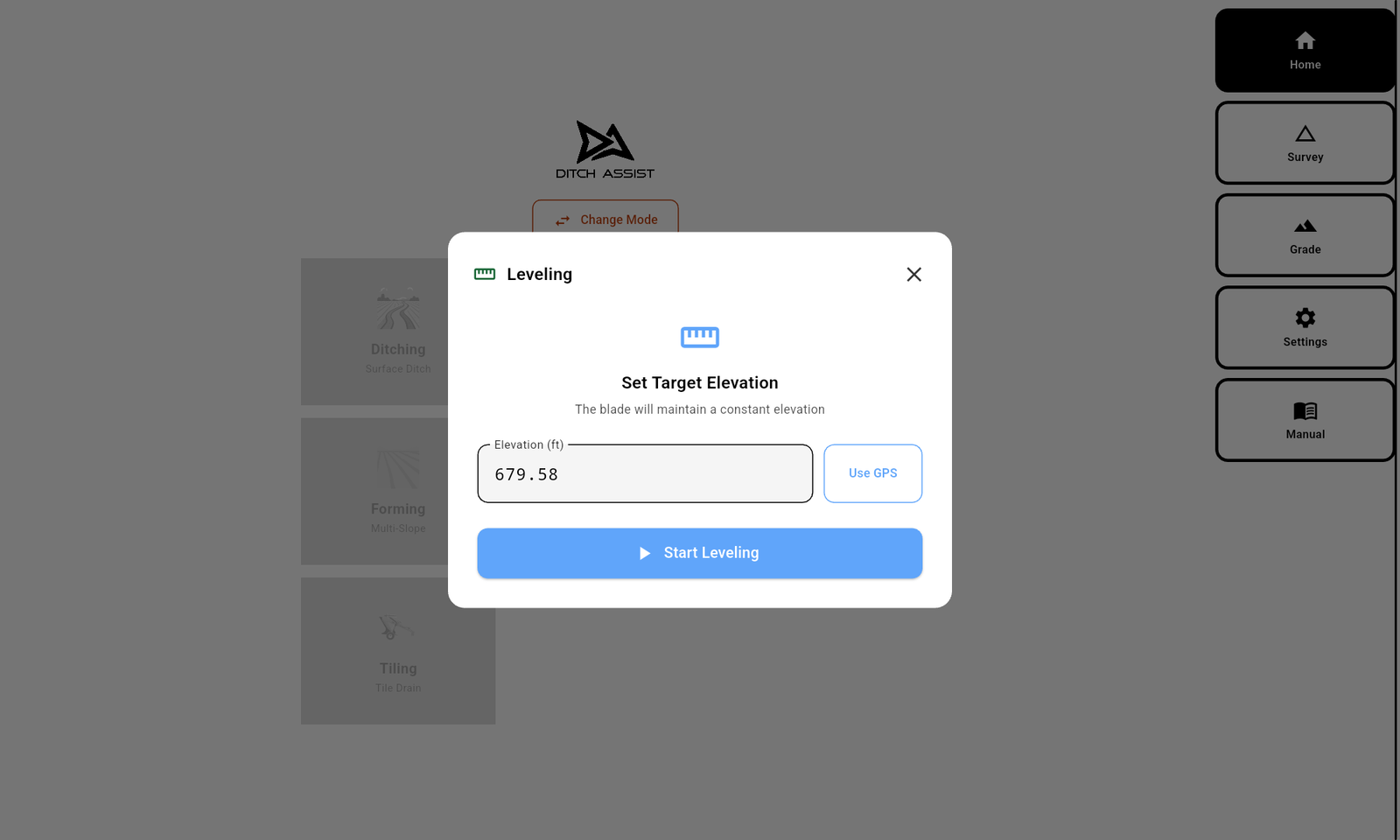
- The sidebar Start button arms once a target is set.
- Lower the blade. Tap Start in the sidebar. The blade goes under automatic control.
- Drive the pad. The chevrons show whether you're above or below the target. Push or pull material as the chevrons direct.
Leveling does not prompt for benchmark calibration. Calibrate your benchmark via the BM badge in the stats bar before tapping Start (or from a different workflow that does prompt). The Pre-Start elevation mismatch check is off by default; switch it on under Settings → PRE-START SAFETY if you want a warning when the target is too far from current GPS — with it on, an uncalibrated BM is hard to miss.


Did this answer your question?
Thanks. That tells us which pages to improve.
Still stuck? Talk to a product specialist. 1-833-DITCH-AS · support@ditchassist.com · Monday to Friday, 8 a.m.–5 p.m. Central.
Calling about a problem? Send your app logs first so support can see what happened.