Connecting to the Ditch Assist DIG module
Excavator chapter of the Ditch Assist app manual. The same text is in the app under Manual.
In the app Manual › Excavator › Connecting to the Ditch Assist DIG module
The DIG module is the excavator-specific control module. It joins the tablet over WiFi only — no Bluetooth pairing, no PIN, no cable.
Step 1 — Join the DIG module's WiFi
- Power the DIG module up on the machine and wait about 30 seconds for its WiFi to come online.
- Open the tablet's WiFi settings and join the DIG module's network. The network name starts with MECU_Ditch_Dig (the suffix is the module's serial). The WiFi password is 12345678.
- Some Android tablets ask whether to "stay connected" because the DIG network has no internet — answer yes so the tablet doesn't hop back to a stronger network with internet in the middle of a job. (Hopping back is the most common reason DIG drops mid-dig — see If the connection drops.)
Step 2 — Open the Excavator workflow
- On the Ditch Assist home screen, tap the Excavator card. The workflow turns active.
- Move into the connect step of the wizard. The normal path is a single Connect button — tap it and the app auto-detects the module, probing DIG first in the Excavator workflow. The spinner text reads Detecting connected module... while it works.
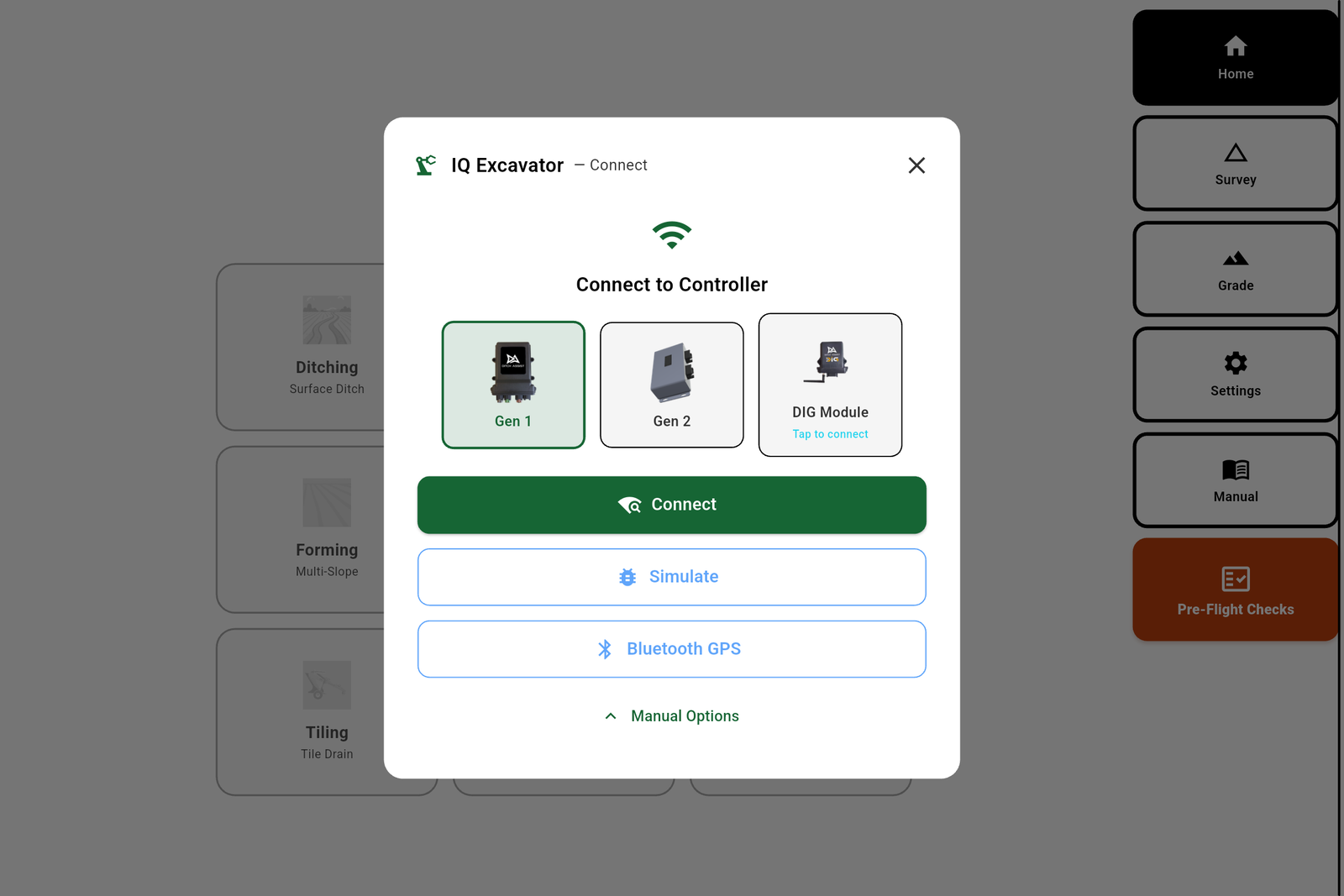
Step 3 — Or pick the DIG card directly
If you'd rather pick the module yourself, tap Manual Options to expand the control module and DIG cards, then tap the DIG Module card (hint text Tap to connect). The first connection usually lands within a few seconds. The DIG card also appears in other workflows' Manual Options, not only Excavator.
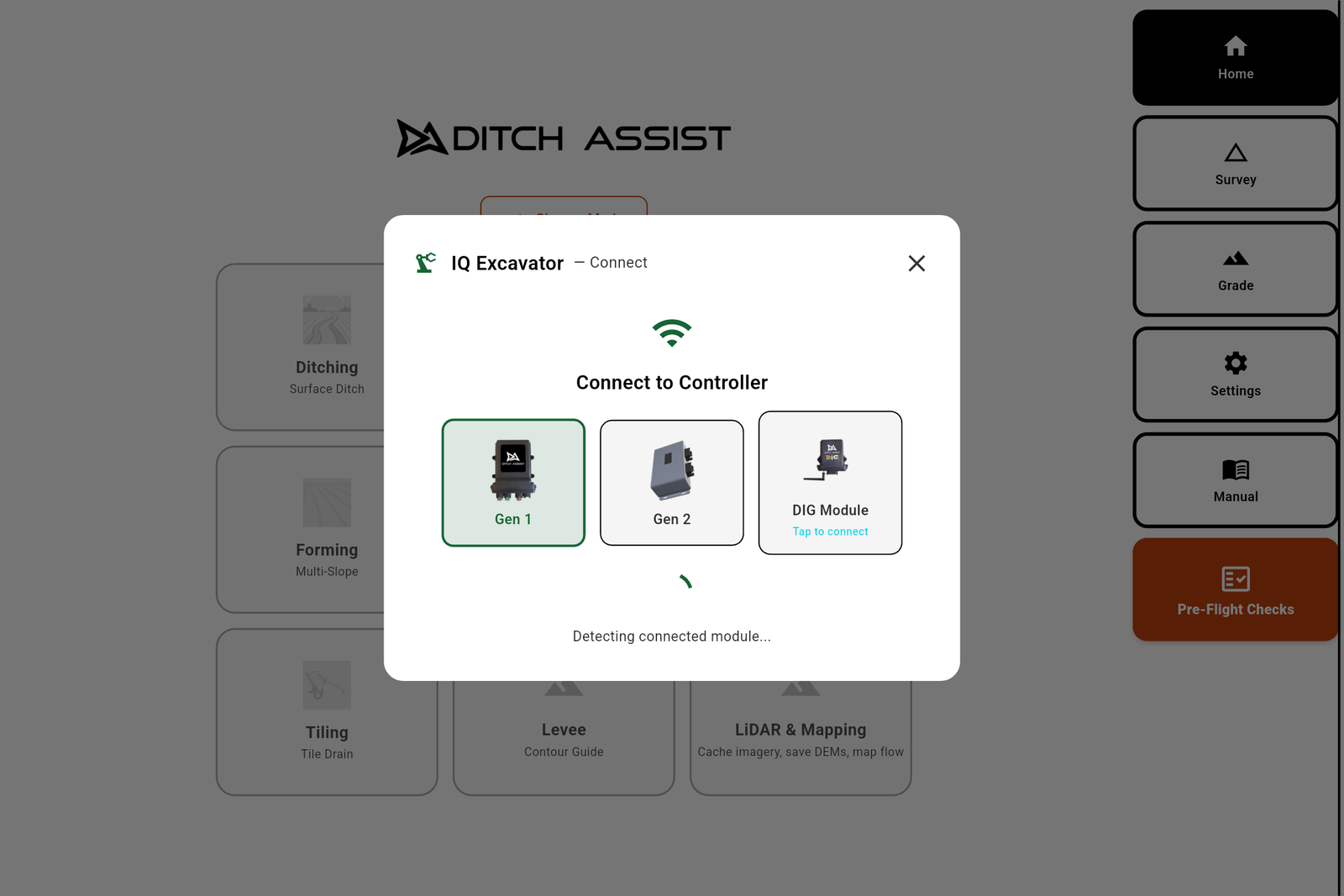
What success looks like
When the connection lands, the wizard advances to the system check. The three indicator rows light up in turn:
- Controller Connected — green as soon as the DIG module answers.
- GPS Signal — green when GPS positions arrive and move.
- GPS Accuracy — green at RTK Fixed, yellow at RTK Float.
Tap Continue to go on to the survey or design step.
What failure looks like
If you tapped the DIG card and the module doesn't answer, a red banner reads Could not reach the DIG module. Check WiFi and retry. If auto-detect (the Connect button) fails, the banner reads Could not detect a Ditch Assist module. Connect tablet WiFi to the module and try again. When either happens:
- Open the tablet's WiFi settings and confirm you are still on the DIG network (it has the MECU_Ditch_Dig name, not your home WiFi or a hotspot).
- Confirm the DIG module is powered up — there is usually a status light on the housing.
- Come back to the wizard and tap Connect (or the DIG Module card) again.
The app also retries on its own in the background every couple of seconds, so if the WiFi was just slow to come up, the next tap (or the next quiet moment) will land.
Did this answer your question?
Thanks. That tells us which pages to improve.
Still stuck? Talk to a product specialist. 1-833-DITCH-AS · support@ditchassist.com · Monday to Friday, 8 a.m.–5 p.m. Central.
Calling about a problem? Send your app logs first so support can see what happened.