Getting a field surface
Contour Tiling chapter of the Ditch Assist app manual. The same text is in the app under Manual.
In the app Manual › Contour Tiling › Getting a field surface
Before any contours exist, the app needs an elevation surface for the field. The source picker intentionally matches Levee so the same data can be reused across Levee, Contour Tiling, and Contour-Guided Terracing.
Saved LiDAR DEM
- While the tablet has internet, open LiDAR & Mapping.
- Draw the rough field boundary and choose Save LiDAR DEM for contours (or the combined Prepare Field flow).
- Reconnect to the controller.
- In Contour Tiling, choose Saved LiDAR DEM and pick that field.
This is the normal offline field-work path. The raw LiDAR DEM is saved under Documents/DitchAssist/, so you do not need to switch back to internet WiFi each time you generate contours.
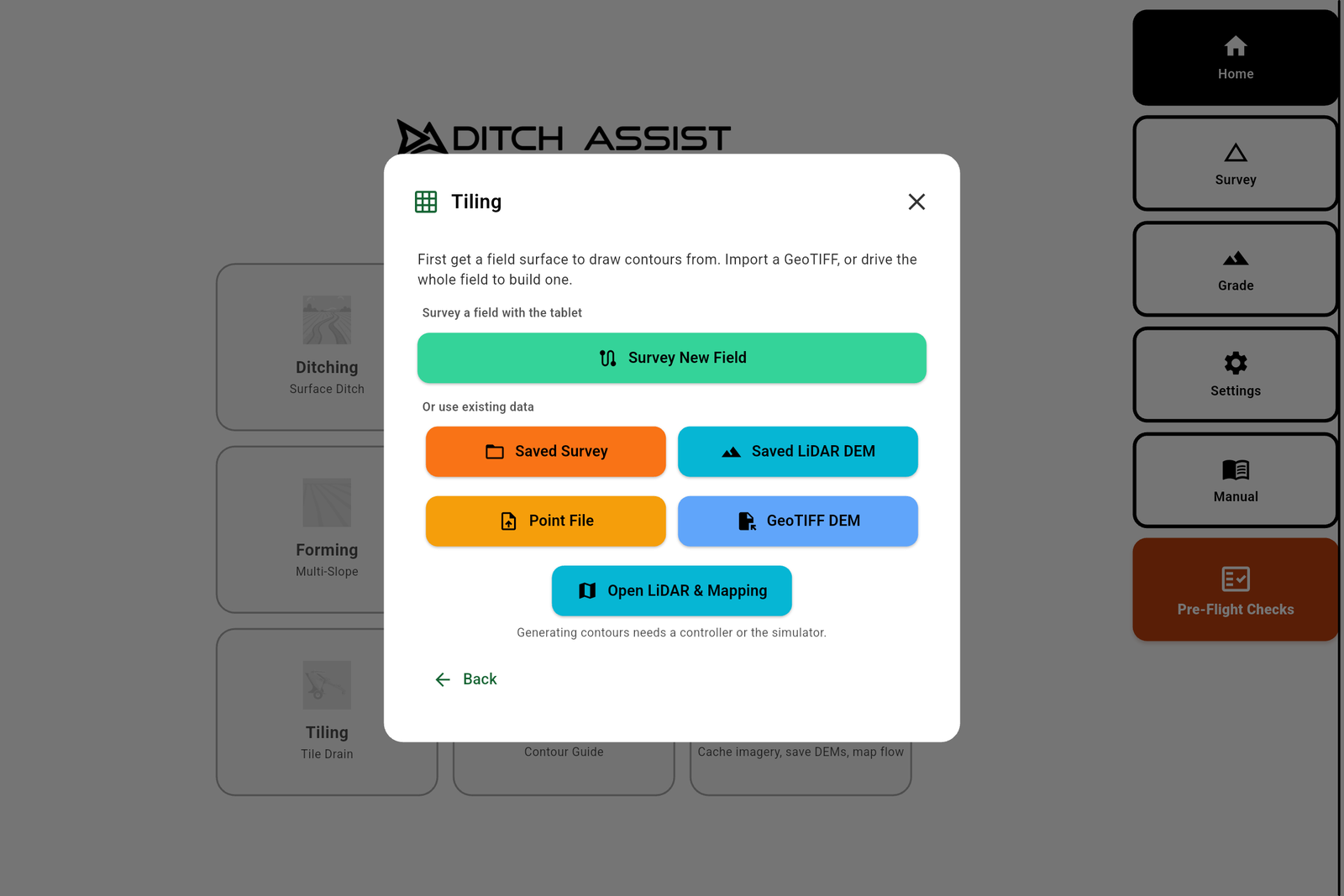
Import a GeoTIFF
- In the Contour Tiling wizard, after choosing Generate New Contours & Survey, tap GeoTIFF DEM.
- Pick a
.tifelevation file of the field from the tablet. - The app reads it and positions you over the field. The Contour Settings dialog opens (interval, smoothing, and source units) — tap Generate and the contours draw.
A GeoTIFF is the fast path when you already have an elevation file (from a LiDAR provider, a drone survey, or a previous mapping job).
Saved survey or point file
Load a saved whole-field survey (Saved Survey), or import an elevation point file (Point File) when you already have ground points from another survey source. Point files and GeoTIFFs ask for source units (Meters / Feet) in the Contour Settings dialog before contours are generated.
Survey the whole field (drive-over)
- Tap Survey New Field. The app opens the whole-field survey screen.
- Drive a back-and-forth pattern over the field — passes spaced about a swath apart, like mowing — so the app has elevation readings across the whole area, not just one line.
- Drop a benchmark when prompted and save when you've covered the field.
- The app turns your driven coverage into a surface, opens the Contour Settings dialog, and generates the contours.
Driving the field takes longer but needs no outside data file — useful on a field you've never mapped. The more evenly you cover it, the cleaner the contours.
Open LiDAR & Mapping (fetch a DEM live)
The sixth panel button, Open LiDAR & Mapping, lets you fetch a LiDAR DEM from inside the wizard: it switches to the LiDAR & Mapping screen, where you draw the boundary and fetch over the internet (region Auto / US / Canada). The fetched DEM is saved for offline reuse — reconnect to the controller and load it from Saved LiDAR DEM. This button requires the one-time LiDAR feature unlock (see the LiDAR & Mapping chapter).
If no contours come out
If the app reports it couldn't generate any contours from the surface, the surface was too flat or too sparse for the contour spacing. Re-drive with tighter passes, or use a better elevation file.
Did this answer your question?
Thanks. That tells us which pages to improve.
Still stuck? Talk to a product specialist. 1-833-DITCH-AS · support@ditchassist.com · Monday to Friday, 8 a.m.–5 p.m. Central.
Calling about a problem? Send your app logs first so support can see what happened.