Home·App·Modes·Ditching
Mode 01 · Ditching

RTK ditch grade control for surface drainage.
This is what Ditch Assist was born to do.

Surface drainage — the original workflow, and still the one most customers run every day. Survey the route, let Slope-IQ™ design the ditch, then let Ditch Assist™'s automated RTK grade control keep you on grade. For deeper cuts, Auto-Nudge™ takes manageable bites pass by pass. Curved, multi-grade, mile-long runs — all native to Ditch Assist.

New to Ditch Assist?

Ditch Assist™ is centimeter-accurate RTK GPS grade control and guidance for field machines — one kit, one Android tablet, any compatible RTK source. Ditching is an included workflow. Buy the kit for this job and every other surface workflow comes with it — terraces, tile drainage, land forming, single-grade work, levees, leveling — at no extra cost, no per-mode activation.

What is Ditch Assist?
What it is

The original Ditch Assist workflow.

Survey a route, design with Slope-IQ™, auto-grade with the implement. Curved routes, multi-grade transitions, long drainage runs — Ditch Assist handles them on whichever implement you've hitched up: pull-type scrapers, rotary ditchers (Wolverine™, T-REX™, Eagle™, Revolution™), or the Pulldozer™.

Move the kit between machines in under an hour. Scraper today, rotary ditcher tomorrow, Pulldozer™ next week — one kit follows the work, whichever implement is hitched up.

Scraper cutting a surface drainage ditch
Slope-IQ design dialog showing a curved, multi-grade ditch design
Fit check

Why not just set one slope?

Because real drainage rarely runs in a straight line at one grade. A laser — or any single-slope setup — holds one flat plane. Ditching mode surveys the actual ditch line, and Slope-IQ™ designs a downhill grade with minimum fall all the way to the outlet — curves, grade changes, and depth limits handled in the design, not set by eye. As you cut, the target follows the surveyed line, so the profile stays right through every bend. And if one slope really is all the job needs, Simple Grading is the faster tool.

Best for

Real drainage work

Operators running a pull-type scraper, rotary ditcher, hydraulic blade, land leveler, or Pulldozer™ who need RTK grade control for curved, multi-grade, or long surface drainage runs.

Different job?

Single-slope or excavator work

A one-slope pass with no drainage design to survey — see Simple Grading — or excavator bucket guidance instead of implement grade control — see Excavator mode. Building flat pads — see Leveling — or drainage tile — see Tiling.

Ditching mode walkthrough

Complete surface drainage how-to: survey, design, and cut a ditch in the app.

This is the in-app workflow an operator follows in the field: check module and RTK GPS status, set survey blade height, record the ditch route, confirm water-flow direction, build the Slope-IQ grade design, read the profile and Grade Guide, stage deeper cuts with Auto-Nudge, then start RTK hydraulic control for the grading pass.

Pre-flight and survey setup

Check green module/GPS status, confirm live elevation, enter survey blade height, then record a straight or curved ditch route.

Slope-IQ design choices

See water-flow direction, minimum grade, depth offset, cut volume, depth limits, and Best-Fit, Guided, and Freeform designs.

Grading and pass control

Watch Auto-Nudge pass staging, Grade Guide target markers, Hold/manual guidance, stop/resume, and green coverage verification.

What the Ditching walkthrough covers

This walkthrough simulates the full Ditching mode flow in the Ditch Assist app, matching what an operator does in the field before and during a surface drainage cut.

  • 1. Pre-flight checks Confirm the control module connection, green GPS checks, updating latitude/longitude, and a live elevation value before surveying.
  • 2. Survey blade height Enter the cutting edge height above ground in transport position so the app can subtract it and record true ground elevation during the survey.
  • 3. Record the ditch survey Start a new Ditching survey, drive the inlet-to-outlet or outlet-to-inlet route, use optional LiDAR flow lines for route guidance, and watch the elevation profile populate.
  • 4. Save and orient the run Stop the survey, name it, save it to the tablet, confirm or reverse the app's suggested water-flow direction, and set the minimum drainage grade.
  • 5. Design with Slope-IQ Compare Best-Fit, Guided, and Freeform design methods. Adjust depth offset, minimum grade, bottom width, side slope, min/max depth, and review estimated cut volume and pass count.
  • 6. Implement and save the design Save the completed ditch design so the same run can be reopened later for cleanout or repeat work without surveying again.
  • 7. Grade with Auto-Nudge Start grading, use Auto-Nudge to limit each pass to the max cut depth, advance pass numbers as each run is completed, and watch the current target move down toward final grade.
  • 8. Use guidance or Hold mode Use the Grade Guide, profile, current target marker, and on-screen guidance manually by holding hydraulic output, then release Hold for automated RTK finishing.
  • 9. Stop, resume, and verify Stop to unload or reposition, restart when ready, then confirm the job is complete when the profile has no remaining cut and the coverage map is green.
Before Ditching

Before you cut the first ditch.

This setup walkthrough shows the app steps that happen before Ditching mode: unlock field prep tools, cache the field while internet is available, then verify the machine connection in the cab.

  • Fetch LiDAR and build flow, depression, and ponding layers so the ditch route starts from real field drainage context.
  • Cache satellite imagery before connecting to module Wi-Fi, because internet is not available while the tablet is connected to the controller.
  • Confirm controller Wi-Fi, valid RTK GPS, and hydraulic response before opening Ditching mode and starting the survey.
Setup video
Automation or guidance

Rough it manually. Finish it automatically.

Ditching works with full hydraulic automation or live on-screen guidance. Automation is the fastest way to keep the blade on the Slope-IQ target, but guidance-only gives an experienced operator the same profile, Grade Guide, chevrons, and coverage feedback while they run the hydraulics by hand.

Full automation

Ditch Assist controls raise/lower hydraulics through the cut, keeping the blade on the surveyed design and making the final pass repeatable with RTK accuracy.

Guidance only

The operator watches the app for target position, upcoming cut changes, and live blade offset while manually running the hydraulics.

Many operators rough the ditch manually while watching the profile and map, then switch to automation for the final grading pass when being exactly on target matters most.

Profile warns what cut is coming before the blade reaches it Grade Guide shows live inches or centimetres off target Coverage colors show rough cuts, closer passes, and finished grade
Ditch Assist Ditching guidance screen showing profile, Grade Guide, and map feedback Ditch Assist Ditching guidance screen in daylight color scheme
Built for real drainage

Everything your drainage work needs.

Curved

Curved routes

Design ditches that follow the field — curves, bends, and dog-legs, all native to the design.

Multi-grade

Multi-grade runs

Steeper here, flatter there — grade transitions along a single run, all in one design.

Long runs

Mile-long runs

Survey and grade long drainage runs in a single session, start to outlet.

Least dirt

Move less dirt

Slope-IQ™ Best-Fit hugs the terrain and cuts only what drainage needs.

Any conditions

Survey what you can't drive

Pause and resume around standing water, or switch to Shot mode and take point shots — the profile fills in between them.

Quick check

Two-point Grade Check

Shoot a point, drive, and read the live grade between it and your machine — no survey recorded, no strings attached.

Multi-day

Benchmarks that keep

Save a benchmark at the field entrance; recalibrate to it any day and every survey, design, and job lines up — even after the RTK base moves.

Resume

Pick up where you stopped

Jobs save coverage, nudges, and passes. Come back, recalibrate — to the ground or the finished grade — and keep cutting.

The workflow

Typical Ditch Assist workflow.

Simple and intuitive. Survey the route, design with Slope-IQ™ (automatic best-fit or fully custom), then hit START — Ditch Assist controls your implement's hydraulics to keep the blade on grade through every pass.

STEP 01

Survey the ditch

Tap the Ditching card and choose New Survey. Drive to the start, tap Start in the sidebar, then drive the planned centerline at a steady pace. The app records a point every Survey Interval (default 1 m / 3 ft). Tap Stop, name it, Save.

STEP 02

Design with Slope-IQ™

The Slope-IQ™ design dialog opens automatically. Best-Fit is the default and usually right — hugs the terrain, always downhill. Adjust Depth Offset or Min Grade if you want a deeper or shallower cut, then tap Implement Slope-IQ™.

STEP 03

Auto-grade

On the Grade screen, lower the blade onto the ground at your starting point and tap Start. The chevrons show whether the blade is above or below target. Drive your normal speed; the blade tracks the design. For deep cuts, Auto-Nudge™ stages multi-pass grading.

You only survey the centerline. As you grade, Ditch Assist™ targets the elevation of the nearest point on that surveyed line — so one pass down the middle sets the target across the full width of the cut. The grade runs along the line exactly as Slope-IQ™ designed it, level across at every station; past the ends, the target holds the last surveyed elevation rather than guessing beyond your data.

Designing the ditch

How Ditch Assist designs your ditch grade.

Survey the route and Ditch Assist works out the cut — downhill to the outlet, on minimum grade, moving the least dirt possible. The design engine is called Slope-IQ.

Slope-IQ design dialog for Ditching
Exclusive technology

Slope-IQ™

Three ways to design a ditch. Automation when you want it, control when you need it.

Slope-IQ™ works out the ditch design from your survey — respecting your minimum grade, depth budget, and any control points you set. Best-Fit hugs the terrain, Guided enforces your grade-break points, Freeform lets you place every vertex yourself.

BEST-FIT

Best-Fit

Set your minimum grade and let Slope-IQ™ solve the design — it follows the natural slope where it works, cuts through humps that hold back flow, and moves the least dirt possible to put the ditch on grade.

GUIDED

Guided

Anchor grade-break points along the run and let Slope-IQ™ connect them — creating same-grade segments that enforce your minimum grade, ideal when certain elevations must hold (a tile inlet, a road crossing, an outlet).

FREEFORM

Freeform

Complete control when you need it — tap anywhere along the run to drop anchor points, then drag them with your finger (even off grade). Whatever you design, Ditch Assist implements.

Staging the cut

How Ditch Assist handles a ditch deeper than one pass.

Most ditches are too deep to cut in a single pass. Ditch Assist stages the depth pass by pass so the scraper never bites off more than it can pull. That engine is Auto-Nudge.

Auto-Nudge prompt — pick max cut per pass
Exclusive technology

Auto-Nudge™ — stages every cut so you never bite off more than your machine can handle.

When the design cut is deeper than your scraper can take in one pass, Auto-Nudge™ stages the cuts for you. Set your max cut per pass; the system computes the target depth for the current pass and you tap to advance when each pass is done. The profile chart shows exactly how much further you've got to final grade.

SET

Set your max cut

Configure the deepest single-pass cut your scraper and conditions can handle (default 2″). Auto-Nudge™ respects that limit on every pass. The design dialog shows the estimated pass count before you implement.

STAGE

System sets each pass target

Auto-Nudge™ computes the cut depth for the current pass — never more than your max. The profile chart shows the active pass as a bold dashed line, with future passes faded behind it so you always see what's left.

ADVANCE

Tap to advance, pass by pass

After completing a full pass over the route, tap Pass + in the sidebar. The system sets the next target, the profile updates, and you keep cutting until you're on final grade.

Before you survey

See where the water goes — then survey along it.

LiDAR Drainage Mapping pulls free public LiDAR for any field and draws three layers on your map — flow routes, ponding risk, and closed depressions — in about thirty seconds. Survey the ditch along the line water already follows, and Slope-IQ™ Best-Fit has less to do: less depth cut, less dirt moved, more acres drained. Built into the app, free with every Ditch Assist™ kit.

Explore LiDAR Drainage Mapping
LiDAR-derived flow lines and depressions over a field
Equipment

Grade control for the machines you ditch with.

Ditch Assist works with the most common ditching equipment — pull-type scrapers, rotary ditchers, and hydraulic blades. Pick yours below for setup and compatibility details.

Pull-type scrapers

Grade Control for Pull-Type Scrapers

Pull-type scraper with Ditch Assist

Both the Automation Kit and the Guidance Kit add full RTK GPS grade control to any hydraulically operated pull-type scraper. The Automation Kit drives the raise/lower hydraulics automatically — PWM valve, hoses, fittings, and a manual-bypass circuit all included. The Guidance Kit gives live on-screen on-grade feedback so the operator works the existing hydraulics manually — control module and harness only, no plumbing.

Ditch Assist makes it easy to achieve accurate surface drainage and land-leveling results. Our standard hydraulic valve provides reliable and precise blade control for typical scrapers used in Western Canada and the Northern U.S., with easily adjustable hydraulic responsiveness via min/max Duty Cycle (DC) settings in the Ditch Assist app. Turn up DC for larger scrapers, or lower it slightly for smaller units. Optional high-flow valve spool upgrades are available for extra-large scrapers — contact us to discuss your specific needs.

Because the Ditch Assist valve is portable and typically mounted on the implement (or tractor), it's easy to switch between tractors or implements throughout the day. Simply weld additional mounts on other equipment, or mount the valve on the tractor if you frequently switch implements. Wireless communication from valve to cab means minimal wiring, allowing you to change tractors and be back grading in under an hour.

Slope-IQ™ designs the best-fit grade from your survey. Auto-Nudge™ controls max cut depth per pass — no more bites so deep they stall the tractor. Tap Pass + after each run to step toward final grade.

Ditch Assist works seamlessly with any RTK GPS system. If you need an affordable RTK solution, ask us about the reliable Emlid Reach RS3 or RS4.

Rotary ditchers

Grade Control for Rotary Ditchers

Rotary ditcher with Ditch Assist

RTK GPS grade control for rotary ditchers — T-REX Ditcher™, Wolverine Ditcher™, Eagle Ditcher™, Revolution Ditcher™, and similar machines. The Automation Kit ships with the PWM hydraulic valve, hoses, fittings, and a manual-bypass circuit. Prefer to run the hydraulics yourself? The Guidance Kit (control module + harness only) gives the same on-screen on-grade feedback without the plumbing.

Run a Revolution Ditcher™? Ditch Assist plugs directly into its factory-installed PWM hydraulic valve — you only need our affordable Guidance Kit. No extra valve, no plumbing. Owners of other ditchers with existing valves should call to confirm compatibility; most still need the full Automation Kit.

Wireless connectivity reduces cab wiring, and the easily adjustable min/max Duty Cycle (DC) settings in the Ditch Assist app offer optimized hydraulic responsiveness for different ditcher models and sizes. The portable valve allows quick switching between tractors or implements, getting you back to ditching in under an hour.

Slope-IQ™ designs the cut profile from your survey. Auto-Nudge™ controls max cut depth per pass so you don't bog down the tractor. Increment pass number after each run until you're on final grade.

Compatible with any RTK GPS system, Ditch Assist also pairs perfectly with affordable, reliable RTK receivers like the Emlid Reach RS3 or RS4. Contact us for details or compatibility questions.

Hydraulic blades & Pulldozer™

Grade Control for Blades and Land Levelers

Hydraulic blade and land leveler with Ditch Assist

Both the Automation Kit and the Guidance Kit add RTK GPS grade control to hydraulic blades and land-leveling equipment, including the Pulldozer™. The Automation Kit drives the existing raise/lower hydraulics so the blade tracks grade automatically through the ditch profile; the Guidance Kit displays live on-grade feedback while the operator works the raise/lower hydraulics manually.

Either way, Ditch Assist works with the raise/lower function only. Other blade functions — tilt, side-wing — stay manually operated. For tilt-capable blades, keep the tilt angle constant from initial survey through to grading; changing it mid-operation alters the GPS height offset and causes deviation from your intended grade.

Slope-IQ™ Best-Fit, Guided, and Freeform engines design the ditch profile from your survey, while Auto-Nudge™ controls maximum cut depth per pass, preventing excessive depth that could stall your tractor.

With the Automation Kit, wireless valve communication means fast swaps between tractors or implements — no harness rewiring. Works with any RTK GPS; the Emlid Reach RS3 or RS4 is our affordable starter option.

Compatible with any RTK GPS — ask about our affordable Emlid Reach RS3 or RS4 bundle for new RTK buyers.

More than ditching

Same kit. Every other surface-grading job too.

Whichever kit you buy for ditching — Automation or Guidance — unlocks every other surface workflow in the Ditch Assist app. No extra cost, no per-mode activation. Tile run in the spring, bin pad in the fall, terraces next season — same kit, same tablet, same operator.

From the field

What operators are saying.

“When I first started selling the Ditch Assist ditching program, I wasn’t interested in just moving another product — I wanted to offer something I could genuinely stand behind. Seeing my customers save time, improve their work, and come back to tell me how well it’s working is what makes this job rewarding.”

Cody Olson Precision Farming Specialist · Titan Machinery — Ada & Winger, Minnesota

“I have used it on our grader blade, dirt pan and even used it for building lakes, which was so much faster than the old laser. But, most importantly, our Wolverine Ditcher for custom waterways. It is an amazing product and at a farm friendly price point, with an awesome team standing behind their product.”

Ross Boarman Specialty Ag Work Inc. — Calhoun, Kentucky
FAQ

Surface drainage grade control questions.

Answers for operators comparing RTK ditch grade control, laser ditching, Slope-IQ design, and multi-pass drainage cuts.

Grade control

What is Ditch Assist Ditching mode for?

Ditching mode is for RTK GPS surface drainage work. Survey the ditch route, let Ditch Assist design the grade with Slope-IQ™, then guide or control the implement to cut the ditch on grade.

Route shape

Can Ditch Assist handle curved or multi-grade ditches?

Yes. Ditching mode follows the surveyed centerline and can run curved, long, and multi-grade drainage routes. As you grade, the target elevation comes from the closest point on the surveyed design.

Slope-IQ

Does Ditch Assist build the ditch design automatically?

Yes. Slope-IQ™ Best-Fit can design a downhill ditch profile from the survey while respecting minimum grade and depth settings. Guided and Freeform options are available when you want to place grade breaks manually.

Deep cuts

How does Auto-Nudge help with deep ditch cuts?

Auto-Nudge™ stages a deep ditch into manageable passes. Set the maximum cut per pass, grade the current pass, then advance the pass target until the ditch reaches final grade.

Guidance only

Can I use Ditching mode without hydraulic automation?

Yes. The Guidance Kit provides the same profile, Grade Guide, chevrons, and coverage feedback while the operator runs the hydraulics manually. The Automation Kit adds automatic raise/lower control for the finish pass.

Equipment

What equipment works with Ditch Assist Ditching mode?

Ditch Assist works with common ditching implements including pull-type scrapers, rotary ditchers, hydraulic blades, land levelers, and Pulldozer™-style implements that use raise/lower hydraulics.

RTK GPS

Can I use my existing RTK GPS?

Yes. Ditch Assist works with compatible RTK GPS sources that can feed the Android tablet and control module. Many operators use their existing RTK source, while others start with an Emlid Reach RS3 or RS4 bundle.

Comparison

How does Ditch Assist compare with SD Drain Ditch or WM-Drain?

Operators researching systems such as SD Drain Ditch or WM-Drain are usually comparing surface-drainage workflow: RTK requirements, hydraulic automation versus guidance, and reporting. Evaluate Ditch Assist on the same basis — one Android app with every surface mode included, an Automation Kit or Guidance Kit depending on whether the implement needs hydraulic control or on-screen feedback, and support for any NMEA-compatible RTK source.

Excavator using the Ditch Assist DIG kit for bucket-tip guidance Ditch Assist DIG
Excavator guidance

Have an excavator or backhoe too?

Add Ditch Assist DIG™ as a separate excavator guidance kit for bucket-tip elevation, trench design, and dug-earth mapping. It uses the same familiar Ditch Assist app experience, so operators can expand from implement grade control to excavators without learning a different UI.

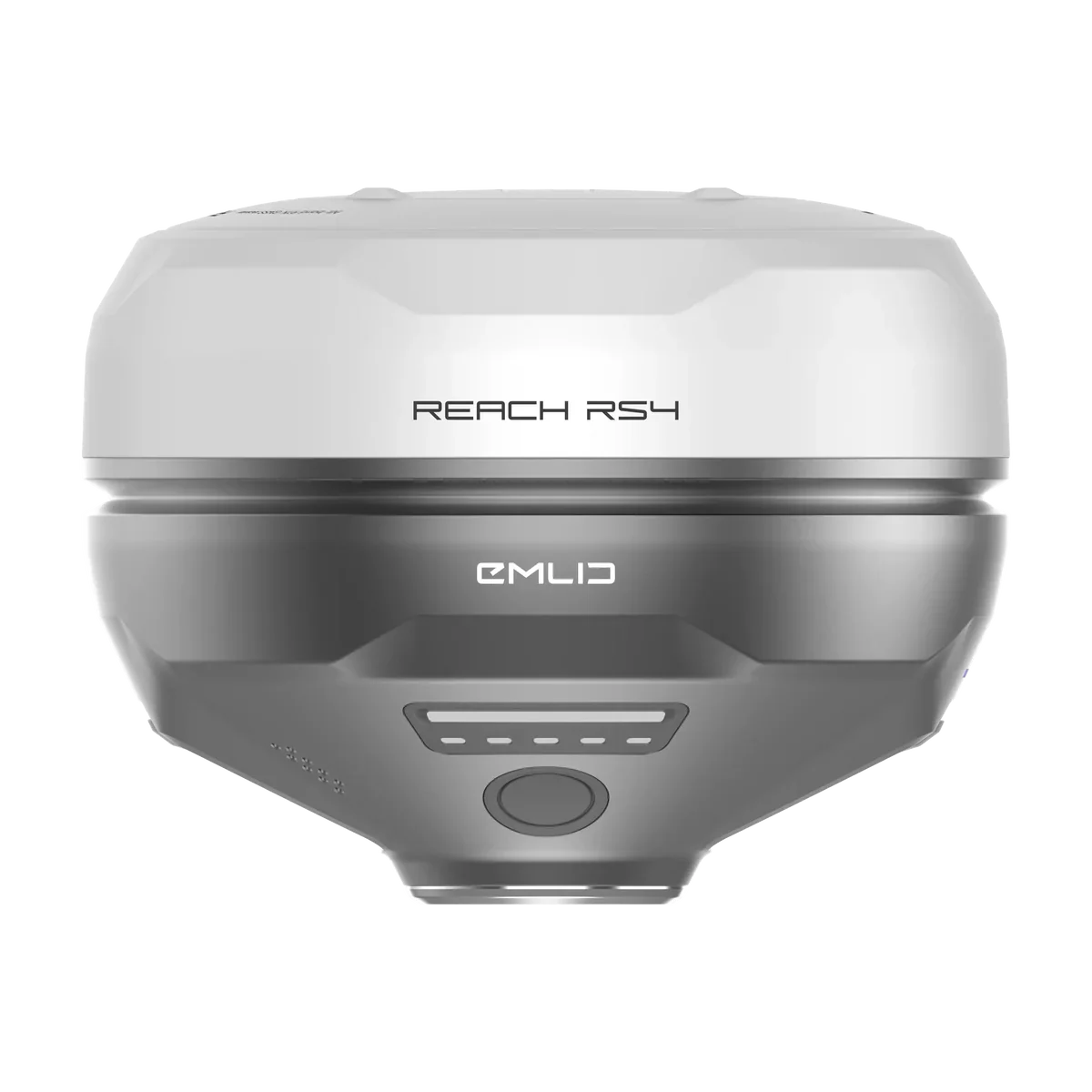
Emlid Reach RS4 RTK receiver for Ditch Assist ditching
Optional RTK GPS bundles

Need RTK for surface drainage?

Ditching depends on reliable RTK elevation for every survey point, design check, and blade correction along curved drainage routes. Bring your current RTK, or bundle Emlid RS4 / RS3 base-rover receivers if you are starting without centimeter GPS. The Ditch Assist-only bundle can include the base tripod, tripod extender, mount hardware, and Ditch Assist-to-Emlid RTK GPS cable.

Compatible equipment

Drives the cylinder on every implement you grade with.

Pull-Type Scrapers (any brand) Wolverine Ditcher™ Pulldozer™ Eagle Ditcher™ T-REX Ditcher™ Revolution Ditcher™ Land Levelers
Try it live

See the real app before you talk hardware.

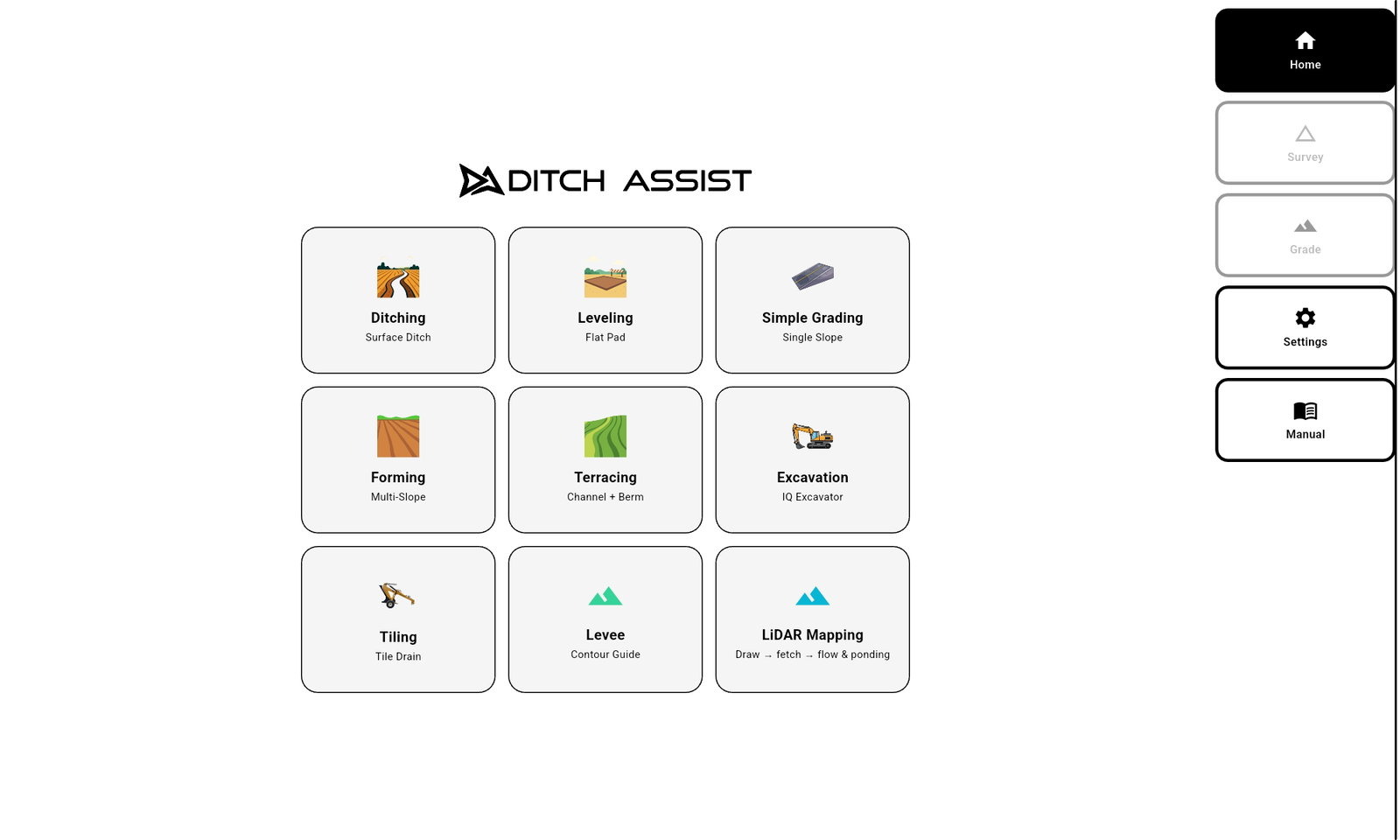
Walk through the Ditching workflow yourself: survey, Slope-IQ™ design, and Auto-Nudge™ grading, all live in your browser.

Ditch Assist app home screen in the browser simulator