Pick a single gradient — uphill or downhill — and Ditch Assist® grade control holds it on every pass. Set it the fast way: type a grade percent and drive from where you're standing, no survey. Or survey a centerline first and fit one grade to the terrain — which also lets you build a whole plane, not just a line. Both take the laser tripod off most constant-slope jobs: the grade reference comes from RTK GPS at the machine and holds through dust and low light, anywhere you have an RTK fix.
Ditch Assist turns centimeter-level RTK positioning into grade control and guidance for field machines — one kit, one Android tablet, any compatible RTK source. Simple Grading is an included workflow. Buy the kit for this job and every other implement workflow comes with it — surface drainage, terraces, tile, land forming, levees, leveling — at no extra cost, no per-mode activation. Running a dozer or self-propelled scraper? Ditch Assist Lite runs Simple Grading as on-screen guidance with only a GPS on the blade, no wires.
One grade, uphill or downhill. Automated or guided.
You set one grade, and Ditch Assist works out the blade target at every point along the run. With the Full Automation Kit, Ditch Assist raises and lowers the implement to that target; with guidance, you work the controls to the arrows on the screen. Either way, there are two ways to set the starting reference.
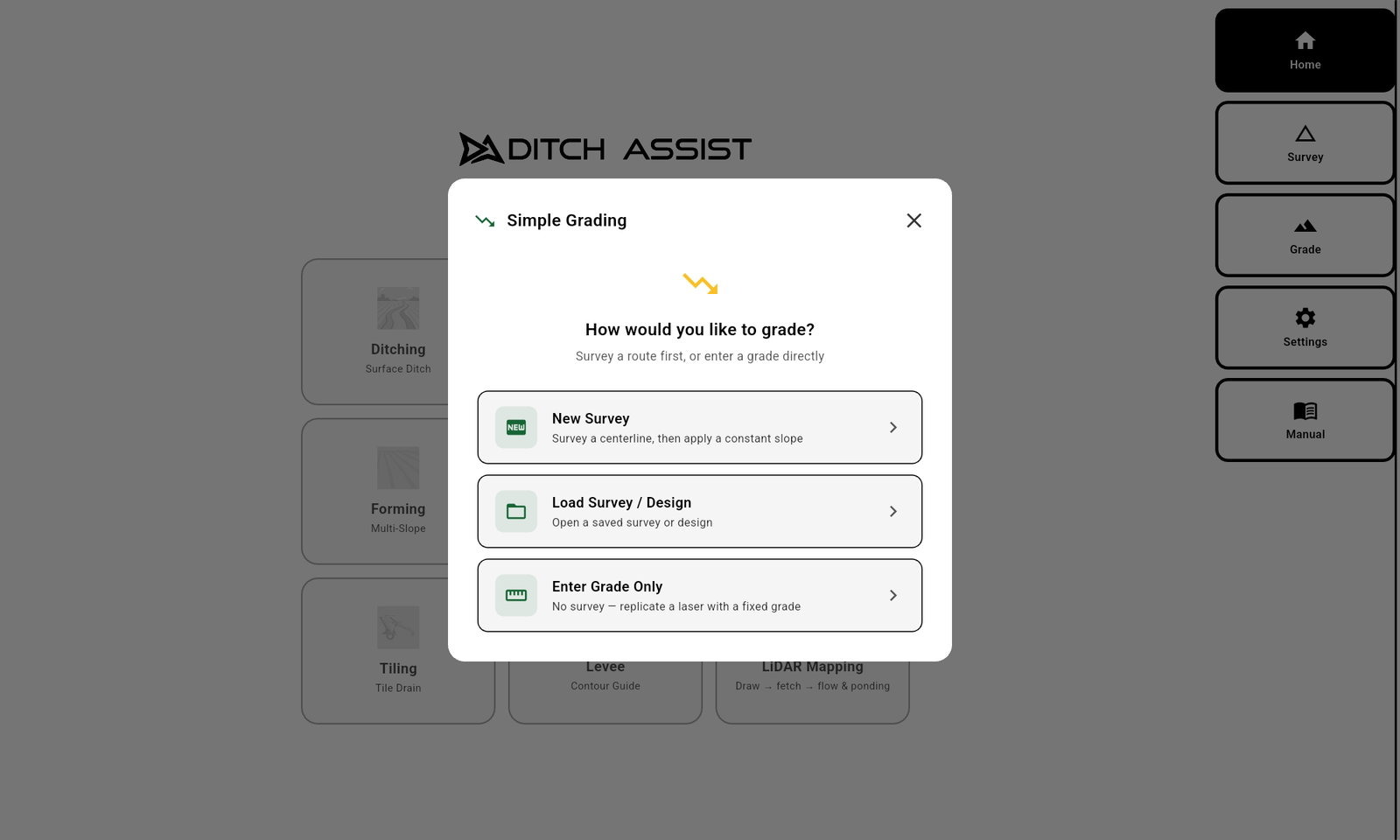
The fast way needs no survey at all: drive to where you want to start, drop the blade to the ground, type a grade percent, and go — it works like a laser, computing the target as rise over run from that point. Five minutes from arriving on-site to grading. The survey way drives a centerline first and fits one grade to the terrain, so you can see the cut and fill before you start, build a plane across a whole area, and run Auto-Nudge™.
Simple Grading mode walkthrough
Two ways to hold one slope: survey first, or enter the grade and go.
This complete app walkthrough shows both Simple Grading workflows: survey a straight run and fit a single-grade design with Slope-IQ™ and Auto-Nudge, or enter a grade directly from a reference point for fast laser-style grading.
Pre-flight and hydraulics
Connect to the control module Wi-Fi, confirm live RTK GPS values, then test raise/lower response before automation.
Survey, design, and Auto-Nudge
Survey a straight centerline, enter blade height, fit one grade line with Slope-IQ, estimate cut volume, and stage deeper cuts into manageable passes.
Direct grade entry
Skip the survey when speed matters: type the target grade, set a reference point with the blade, then use automation or guidance to hold that slope.
What the Simple Grading walkthrough covers
This walkthrough simulates the full Simple Grading flow in the Ditch Assist app, matching what an operator does when holding a single slope for roads, approaches, shallow drains, pads, or constant-grade planes.
1. Choose the right workflow Use Simple Grading for one constant slope. For multi-slope profiles, best-fit drainage channels, or more advanced surfaces, use Ditching mode instead.
2. Run pre-flight checks Connect the tablet to the control module Wi-Fi, confirm green module and GPS checks, verify live latitude, longitude, and elevation updates, then test raise/lower hydraulics if using automation.
3. Enter blade height for surveys Measure from the cutting edge to the ground with the implement in transport position so Ditch Assist can subtract blade height from GPS elevation and record true ground elevation.
4. Survey a straight run Drive the center of the channel or plane, save the survey to the tablet, then reopen it later without surveying the same run again.
5. Fit one grade with Slope-IQ Adjust grade percent and depth offset, review estimated cut volume, and see how bottom width, side slope, and cut depth affect the work required.
6. Grade with Auto-Nudge Use Auto-Nudge when the full cut is too deep for one pass. Set a maximum cut per pass, advance through passes, and watch the current target step down toward final grade.
7. Use the Grade Guide and Hold Read the live blade target on the Grade Guide, pause hydraulic output with Hold for manual bulk work, then release Hold to let automation finish accurately.
8. Enter grade directly Skip the survey, type the target grade, lower the blade to the starting reference elevation, and let Ditch Assist calculate the grade line from that point.
9. Add depth offset or manual nudges Direct grade entry supports depth offset and manual nudging. Use it for deeper channels, consistent depth below a starting point, or fast laser-style slope work.
Before Simple Grading
Before you set the slope.
Simple Grading is the fastest Ditch Assist workflow, but the same first-run checks still matter before you start cutting a road, approach, drain, or plane.
Cache satellite imagery and any useful LiDAR layers while internet is available, especially if the job is in a low-coverage field or yard.
Connect to module Wi-Fi and confirm RTK GPS before choosing Enter Grade Only or New Survey.
For automation, verify hydraulic response; for guidance-only work, confirm the on-screen target feedback is updating correctly.
Setup video
Automation or guidance
One slope, no tripod — full automation or guidance, your call.
Simple Grading runs either way. With the Full Automation Kit, Ditch Assist raises and lowers the implement to the grade on every pass. With guidance, you enter the grade, drive, and raise and lower the blade yourself, following the Grade Guide, chevrons and coverage colors on the screen.
Guidance-only slope control
The screen shows how far the blade is above or below grade, which way to move it, your nudge offset, and where you have already graded. You work the controls. On a pull-type scraper, blade or leveler, the Guidance Only Kit does this, and can take our valve later to become the Full Automation Kit. On a dozer or self-propelled scraper, Ditch Assist Lite does it with only a GPS on the blade, no wires; automating later means buying the Full Automation Kit at full price.
Full automation
Ditch Assist holds the implement to the grade you entered, or to the grade fitted to your survey, on every pass. Tap Hold to stop the automation for manual bulk work; the Raise and Lower buttons stay live. Tap Resume and Ditch Assist goes back to holding grade.
On the farm, Ditch Assist Lite is the lowest-cost way to run Ditch Assist on a scraper, blade or leveler, but it has no upgrade path: automation later means buying the Full Automation Kit at full price, with no credit for Ditch Assist Lite.
Live Grade Guide replaces a laser receiver in the cabChevrons point the blade up or down toward targetNudge target height for staged roughing and finish passes
Same result — a single slope held across the run. Choose the no-survey path for speed, or the survey path when you want to see the cut and fill, build a plane, or run Auto-Nudge.
Method 1 — Enter a grade, no survey
The fastest path: drop a reference where you're standing, type a slope, drive. Works like a laser — your current position is the benchmark and the target is computed as rise over run from there.
Need a set depth? In this mode, use NUDGE to offset the design. Nudge down in small increments, from inches toward feet, and the entire grade line moves down by that amount. Keep advancing pass by pass until you reach the depth you want so the machine is never asked to take too deep a cut in one pass. Without a survey there's no terrain model, so further along the run the cut may end up deeper or shallower than your starting depth — it follows the grade, not the ground.
Want a grade break mid-run? Stop, tap Change Grade, enter the new slope, and keep going — no restart. The grade simply breaks from wherever you are, so you can string several slopes together by hand as you drive.
Method 2 — Survey a centerline, fit one grade
When you want to see the cut and fill first — or grade a whole plane instead of a single line — survey the route and let Slope-IQ™ fit one grade to the terrain.
Because the survey records the existing ground, you can run Auto-Nudge here: it stages your passes and sets the target for each one. It works for planes too; just keep in mind that as you work out from the surveyed centerline the ground can rise or fall, so cuts may come in a little deeper or shallower than on the line itself.
Design note
Simple Grading fits one grade to the survey. For designed grade breaks or a fully custom profile, use Ditching instead. Its Slope-IQ™ designer adds Guided and Freeform options, so you can place breaks deliberately against the surveyed ground rather than by feel as you drive.
Staging the cut
Deep cut? Stage it pass by pass.
When a surveyed grade or plane needs more dirt moved than your scraper can pull in one pass, Auto-Nudge steps the cut down a layer at a time, each pass held to the max cut you set. It needs the survey-based method: the survey records the existing ground, so Ditch Assist knows how much is left to final grade.
Pass staging
Auto-Nudge™ — when one grade is deeper than one pass.
Set your max cut per pass; Auto-Nudge™ computes the target for the current pass and you tap to advance when each one is done. The profile chart shows exactly how far you've still got to final grade. Whether you're sinking a ditch on a single grade or stepping a whole plane down, the cut comes off in safe, even layers. On the Full Automation Kit, or a Guidance Only Kit plugged into a compatible factory valve, Ditch Assist works raise/lower to each pass’s target; otherwise, as on Ditch Assist Lite, you work the controls to match it.
Illustration. Vertical scale exaggerated.
AUTO-NUDGE
Max cut2.0in
Pass1of6
This pass, up to2.0 in
Left to final grade11.0 in
SET
Set your max cut
Configure the deepest single-pass cut your scraper and ground conditions allow (default 2″). Auto-Nudge™ holds that limit on every pass, and the design dialog shows the estimated pass count before you start.
STAGE
System sets each pass target
Auto-Nudge™ computes the cut depth for the current pass — never more than your max. The profile chart shows the active pass as a bold dashed line, with the passes still to come faded behind it.
ADVANCE
Tap to advance, pass by pass
After a full pass over the run, tap Pass + in the sidebar. The system sets the next target, the profile updates, and you keep cutting until you're on final grade.
On the no-survey method there's no record of the existing ground, so Auto-Nudge™ doesn't apply: you step the grade line down yourself with NUDGE, pass by pass. Want the passes staged for you? Survey the centerline first.
Why this mode exists
The laser job, without the laser setup.
Most constant-slope jobs do not need a full design. They need one grade, one direction, and a machine that holds it while you move dirt. Simple Grading gives you that laser-style workflow from the tablet already in the cab: type the slope, choose uphill or downhill, and start grading.
01
Start from where the machine is.
Drop the blade, enter the grade, pick the direction, and go. Your current position becomes the reference, so quick approaches, drains, pads, and finish runs do not need a survey before the first pass.
02
No tripod to set up, no beam to chase.
The target lives in the machine's RTK position and on the tablet in the cab. Dust, low light, and traffic crossing the jobsite leave the grade reference untouched — it holds anywhere you have an RTK fix.
03
Take depth down under control.
Need the finished grade lower? Use NUDGE to move the whole design down in small increments, then advance pass by pass so each pass takes only the cut you choose.
04
Survey first when the job needs it.
If the run needs cut/fill preview, low-area fill planning, or Auto-Nudge, survey the centerline and fit the same single grade to the ground. The quick workflow and the planned workflow stay in one mode.
Equipment
Which kit fits your machine.
On pull-type scrapers, hydraulic blades, pull-type dozer blades and land levelers, the Full Automation Kit puts our valve on the implement and Ditch Assist works raise/lower. Rather work the levers yourself? The Guidance Only Kit is the lower-cost start, and you can add our valve later. Pick your implement below for setup details. Ditch Assist Lite needs only a GPS on the blade, no wires, so it runs on any machine you can put a GPS on, dozers and self-propelled scrapers included.
Pull-type scrapers
Grade Control for Pull-Type Scrapers
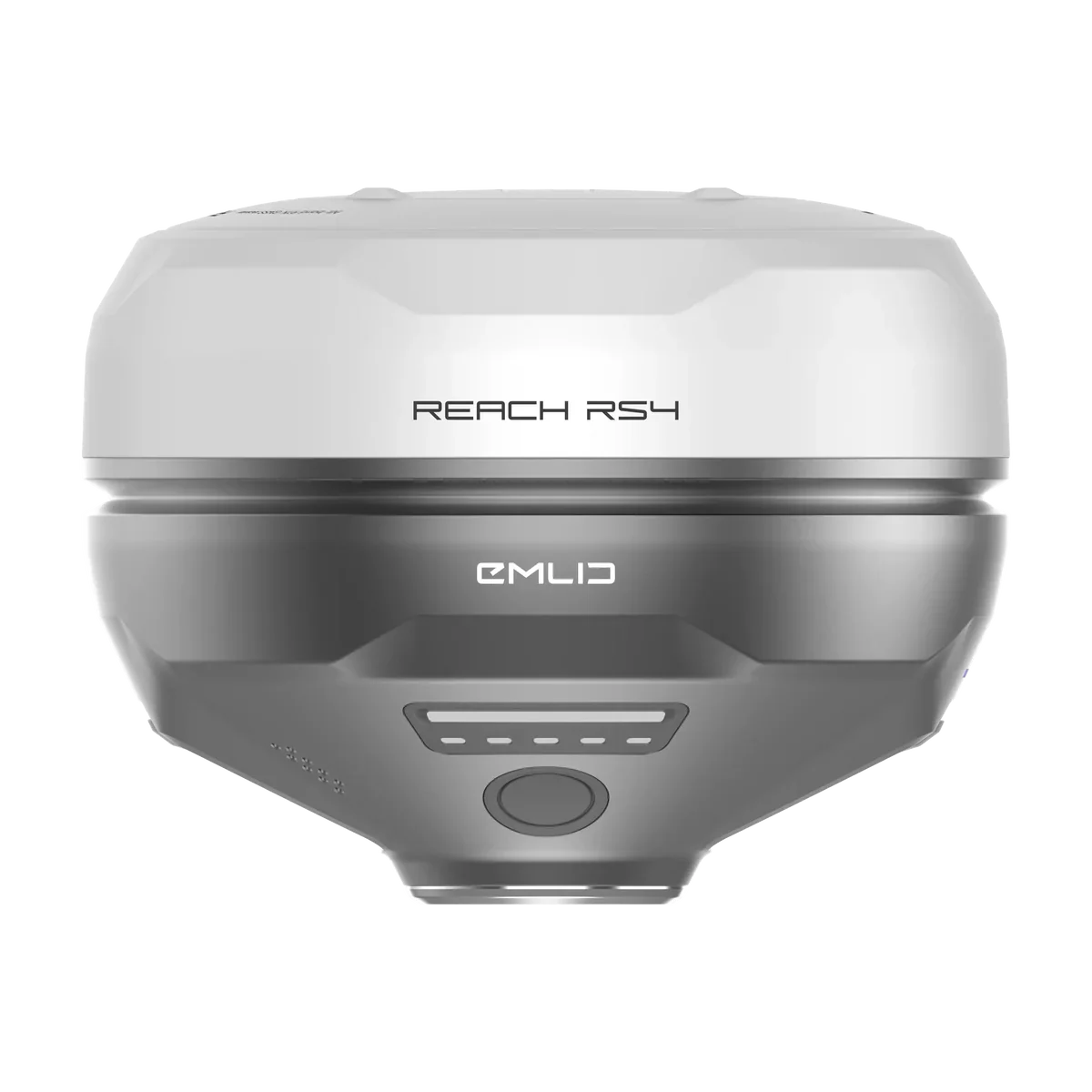
Pull-type scrapers are the most common Simple Grading machine — road approaches, finish runs, pad rough-in. The Full Automation Kit adds RTK GPS grade control to any hydraulically operated pull-type scraper: Ditch Assist works raise/lower through our PWM valve, with hoses, fittings and a manual-bypass circuit included. Rather work the hydraulics yourself? The Guidance Only Kit shows on-grade feedback on the screen while you work the existing hydraulics, and you can add our valve later to make it the Full Automation Kit. Want the lowest-cost way to run Ditch Assist? Ditch Assist Lite puts only a GPS on the implement, no wires: an Emlid Reach RS3 or RS4. It has no upgrade path, so automation later means buying the Full Automation Kit at full price, with no credit for Ditch Assist Lite.
The Min Valve DC and Max Valve DC (duty cycle) settings in the app tune hydraulic responsiveness to your scraper size. Wi-Fi from the control module keeps the cab clean and allows fast machine swaps — drop the kit on a different tractor and be back grading in as little as 20 minutes.
Works with any compatible RTK GPS; ask about our affordable RTK bundles.
Hydraulic & pull-type dozer blades
Grade Control for Hydraulic and Pull-Type Dozer Blades
Hydraulic blades and pull-type dozer blades suit Simple Grading well — small jobs, precise depth control, low ground pressure. With the Full Automation Kit, Ditch Assist works raise/lower so the blade holds the slope across the whole run. With the Guidance Only Kit, you work the hydraulics to live on-grade feedback on the screen, and you can add our valve later to make it the Full Automation Kit. Want the lowest-cost way to run Ditch Assist? Ditch Assist Lite guides these blades with only a GPS on the implement, no wires, but it has no upgrade path: automation later means buying the Full Automation Kit at full price, with no credit for Ditch Assist Lite.
Ditch Assist works with the raise/lower function only — tilt and side-wing functions stay manual. Keep the tilt angle constant from origin set through to grading; changing it alters the GPS height offset and pulls the blade off the intended slope.
Wi-Fi from the control module to the cab means fast swaps between tractors or implements. Works with any compatible RTK GPS.
Land levelers
Grade Control for Land Levelers
Land levelers suit finish-run Simple Grading — their broad cut and even weight smooth a slope in fewer passes than a smaller blade. Both kits add RTK GPS grade control to any hydraulic land leveler. With the Full Automation Kit, Ditch Assist works raise/lower so the leveler tracks the slope automatically. With the Guidance Only Kit, you work the hydraulics to live on-grade feedback on the screen, and you can add our valve later to make it the Full Automation Kit. Want the lowest-cost way to run Ditch Assist? Ditch Assist Lite guides levelers with only a GPS on the implement, no wires, but it has no upgrade path: automation later means buying the Full Automation Kit at full price, with no credit for Ditch Assist Lite.
Same rules as the blade: raise/lower only, keep tilt constant from origin set onward.
Wi-Fi from the control module to the cab, fast machine swaps, any compatible RTK GPS — or one of our affordable RTK bundles.
More than Simple Grading
Same kit. Every other job too.
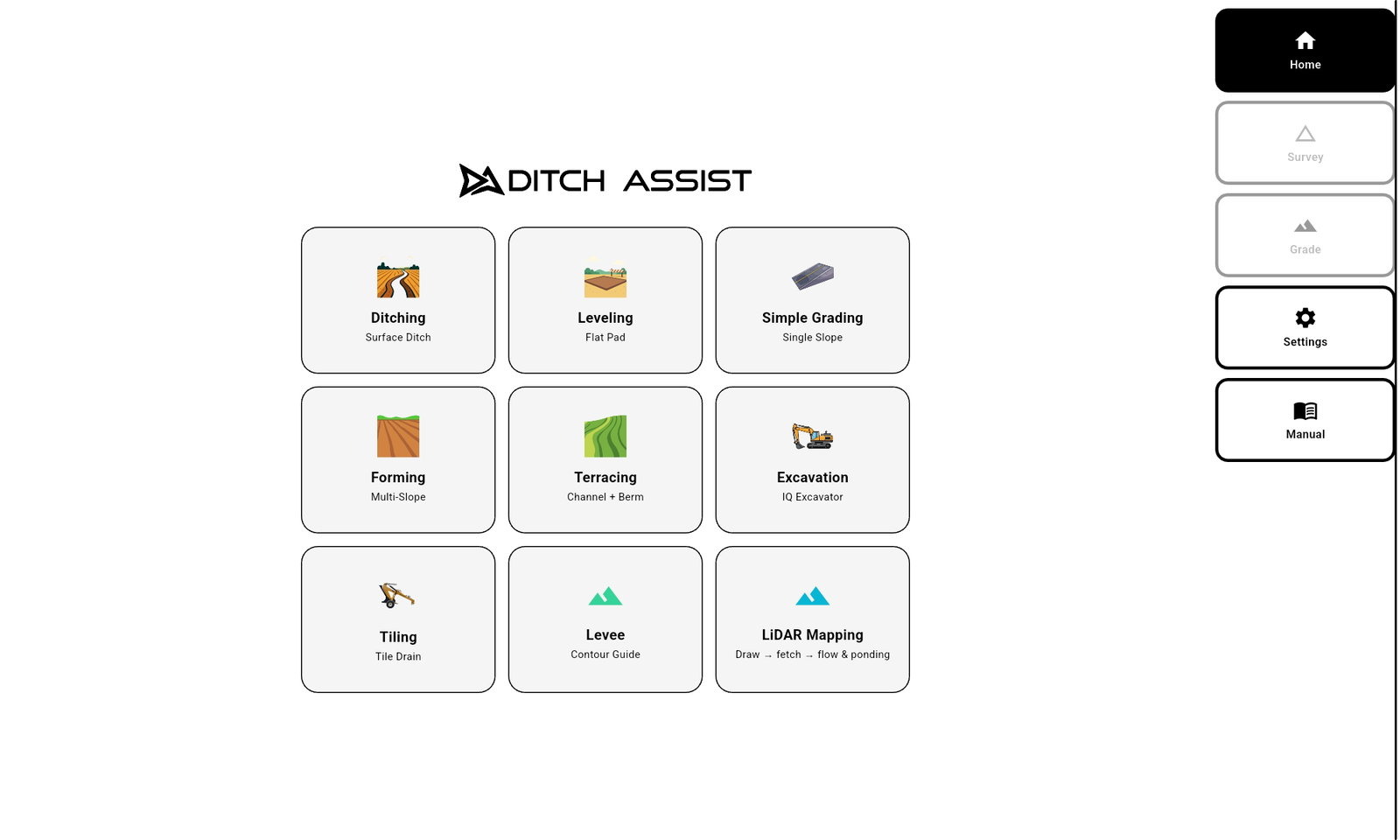
Whichever kit you buy for Simple Grading — Full Automation or Guidance Only — unlocks every other implement workflow in the Ditch Assist app. No extra cost, no per-mode activation. Ditch Assist Lite, with only a GPS on the implement and no wires, runs every one of these modes too, Tiling and Land Forming included, as guidance: you work the controls.
Farm road approach to a culvert. Twenty minutes from pulling in the gate to finishing the cut. No tripod, no rod man, no second person.
No tripod
Every quick grade starts from the cab: no tripod to haul out, set up, or move. The grade reference rides on the machine's RTK, through dust and the full length of the run.
In the cab
Enter Grade Only, type 0.5%, tap Downhill, then Start. The blade tracks the slope every pass — even when the tractor jumps over a rough patch.
Is this the right mode?
Best for / not for.
Best for
One constant slope, survey optional
Farm road approaches, culvert approaches, lanes, yard drainage, pads, and feedlot slopes — any run that holds a single grade from one end to the other.
Different job?
Curved routes or a flat target
Curved drainage, multiple grade breaks, or best-fit channel design — use Ditching. One flat target elevation with no slope at all — use Leveling.
FAQ
Single-slope grade control questions.
Answers for operators comparing Simple Grading, laser grading, Ditching mode, Leveling mode, and RTK GPS slope control.
Single grade
What is Ditch Assist Simple Grading mode?
Simple Grading holds one constant slope, uphill or downhill. Enter a grade and start from the machine's current position, or survey a centerline first and fit one grade to the terrain.
Survey optional
Do I need to survey before using Simple Grading?
No. Enter Grade Only lets you type a grade percent, set the starting reference, and begin grading without a survey. New Survey is available when you want cut/fill preview, a planned plane, or Auto-Nudge pass staging.
Laser alternative
Can Simple Grading replace a laser?
For many constant-slope jobs, yes. Simple Grading takes its grade reference from RTK GPS at the machine and shows it on the tablet in the cab, with no tripod to set up or move. The reference holds through dust and low light, anywhere you have an RTK fix.
Mode choice
How is Simple Grading different from Ditching mode?
Simple Grading fits one constant grade. Ditching mode is the better choice for curved drainage routes, multi-slope profiles, best-fit drainage channels, Guided grade breaks, and Freeform design.
Flat pads
Should I use Simple Grading or Leveling for flat pads?
Use Leveling when the finished surface is one flat target elevation. Use Simple Grading when the job is one slope, or when you want to survey a 0% plane with design and cut/fill context.
Auto-Nudge
Does Auto-Nudge work in Simple Grading?
Yes, when you use the survey-based workflow. The survey gives Ditch Assist the ground profile and final grade target, so Auto-Nudge™ can stage deeper cuts into manageable passes. Where nothing works raise/lower for you — a Guidance Only Kit without a compatible factory valve, or Ditch Assist Lite — Auto-Nudge™ sets each pass’s target and you work the controls to match it.
Equipment
What equipment works with Simple Grading?
On pull-type scrapers, hydraulic blades, pull-type dozer blades (including the Pulldozer) and land levelers, run the Full Automation Kit, where Ditch Assist works raise/lower, or the Guidance Only Kit, where you work the hydraulics and can add our valve later. Dozers and self-propelled scrapers run Ditch Assist Lite, guidance-only grade control for any machine you can put a GPS on: only an Emlid Reach RS3 or RS4 on the blade, no wires, while you work the controls. Already own a compatible John Deere, Trimble or Outback RTK GPS? The Guidance Only Kit can run it on those machines instead; we review each machine first. Skid steers and motor graders can be challenging; contact us to discuss before you buy. Ditch Assist Lite works on any machine where the receiver moves up and down with the cutting edge and the blade stays at the same angle (one receiver can’t correct for tilt). On the farm, Ditch Assist Lite is the lowest-cost way to run Ditch Assist, but it has no upgrade path: automating later means buying the Full Automation Kit at full price, with no credit for Ditch Assist Lite; for most farms we still recommend the Full Automation Kit.
Excavator guidance
Have an excavator or backhoe too?
Add the Ditch Assist DIG™ Kit, a separate kit for excavators and backhoes, for bucket-tip elevation, trench design, and dug-earth mapping. It runs in the same Ditch Assist app, and Excavator mode has the same Enter Grade Only you use here: type a grade, pick uphill or downhill, and dig to the bucket-tip target on the screen.
Simple Grading is fast because Ditch Assist can hold a slope or plane directly from RTK elevation. If you do not already have RTK on the machine, Emlid RS4 / RS3 base-rover bundles are an affordable way to get centimeter GPS. The Ditch Assist-only bundle adds the tripod, extender, mounts, and Ditch Assist-to-Emlid RTK GPS cable. Ditch Assist Lite needs only a GPS on the implement, no wires: an Emlid Reach RS3 or RS4 on the machine. RTK corrections usually come from a second Reach as a base, or from a correction network over the receiver’s SIM.
Full Automation Kit, Guidance Only Kit, or Ditch Assist Lite.
Full Automation Kit: our valve goes on your scraper, blade or leveler, and Ditch Assist works raise/lower. Guidance Only Kit: you work the hydraulics to the arrows on the screen and can add our valve later to make it the Full Automation Kit; on an implement with a compatible factory valve, it plugs into that valve and Ditch Assist works raise/lower. Both kits run any compatible RTK GPS. Ditch Assist Lite: guidance only, on any machine, with one GPS on the blade and no wires; on the farm it is the lowest-cost way to run Ditch Assist, but it has no upgrade path, so automating later means buying the Full Automation Kit at full price. All three run the same app on an Android tablet.